
Summary
How to print single-sided (one-sided) on a Mac using the system dialogue from the Chrome print menu.
Workplace Experience requires double-sided printing, which saves paper and is better for the environment. Please consider printing double-sided whenever single-sided is not specifically required. Also, the Preview Application does not allow setting single- or double-sided printing. If you are printing a PDF and have special requirements, open it in Adobe Reader.
NOTE: Some applications utilize their own print dialogue boxes which may appear different from the examples below. Look for a similar option in that application's print dialogue to replicate these steps.
Instructions
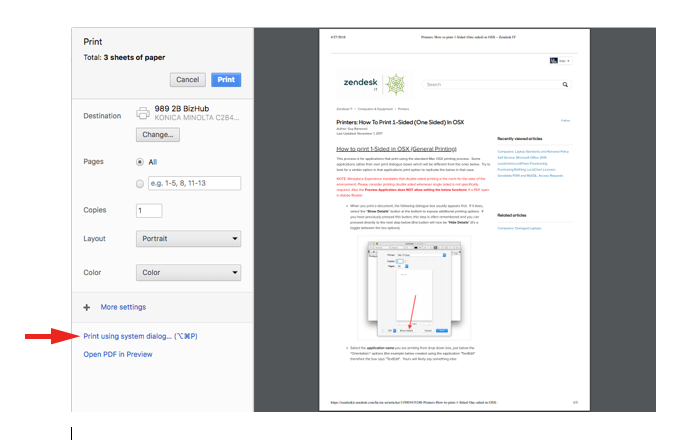
- In Chrome, select File > Print...
- Then choose Print using system dialogue...
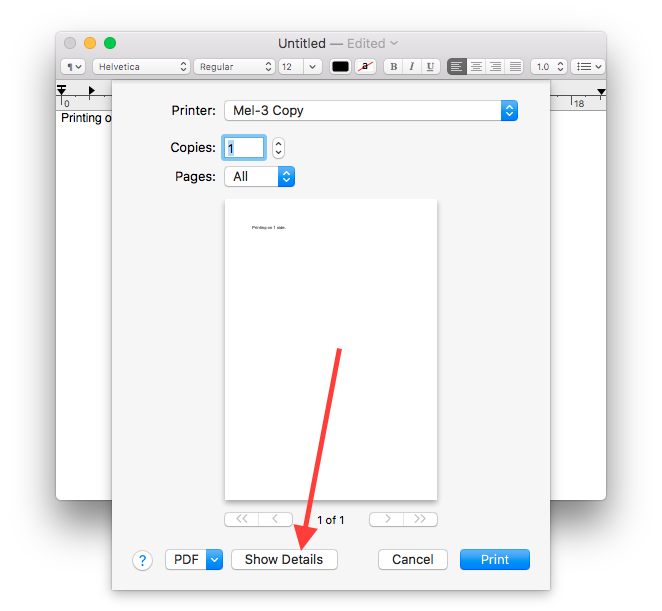
When you print a document, the following dialogue box usually appears first.
- Select Show Details at the lower-left to expose additional printing options.
- If you have previously pressed this button, this step is often remembered and you can proceed directly to the next step below (this button will now display Hide Details.
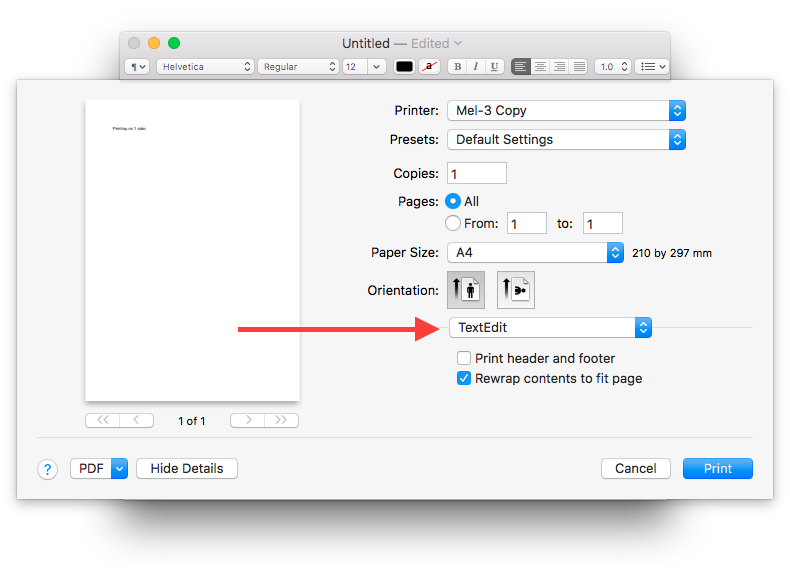
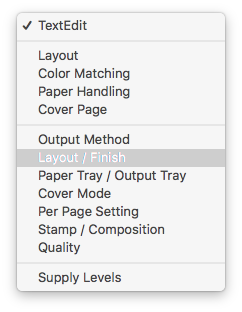
- Select the application's name (the example below was created using TextEdit)
- Select Layout / Finish
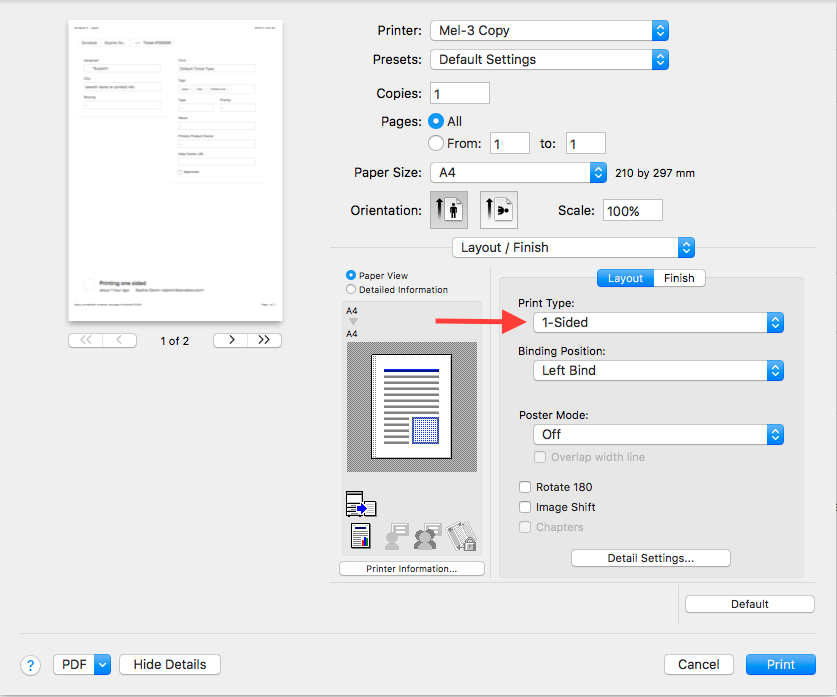
- The following option dialogue box will appear. Change the Print Type: to 1-Sided
- Select the Print button to print your document 1-Sided.
NOTE: These settings will not save, so if required you may need to repeat these steps after a restart.
Comments
0 comments
Please sign in to leave a comment.